

Written by Jason Taylor
Have you ever started a “quick nmap scan” on a remote internal network penetration test only to find out an hour in that this may be taking longer than anticipated? If you were thinking ahead and ran your nmap scan within a screen or tmux session, no harm done. You can just detach from your session and go about your business, knowing your laptop going to sleep isn’t going to disconnect you and kill that long-running scan.
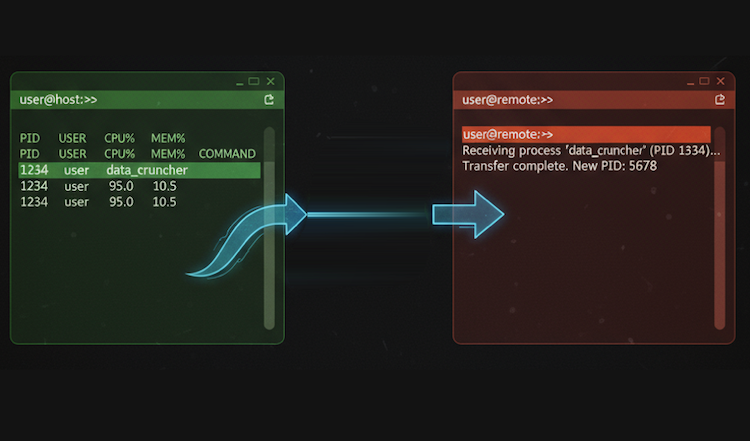
Sometimes, though, you may not have thought this scan would take long. You didn’t start up screen ahead of time, and now you’re in a pickle. Is there anything you can do? Thankfully, yes, it is possible to move a currently running process into a new screen or tmux session. Today we’ll be highlighting a cool tool called reptyr that can take over already running processes and bring them into a new screen or tmux session.
Installation
To get started, you will need to install reptyr, which should be available in your system’s package repository for most Linux systems, including Ubuntu and Kali. You can install with a simple command:
apt update && apt install -y reptyr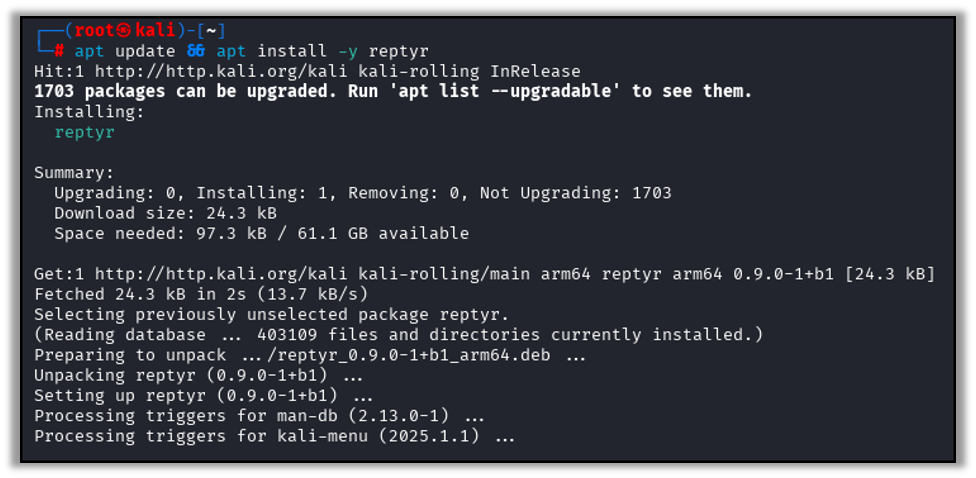
Migrating Processes
With reptyr installed you can now migrate processes from a non-screen SSH terminal into a safe-and-sound screen or tmux session. The process is simple and does involve suspending and backgrounding the process briefly during the transfer process.
Enter the following commands in your terminal to suspend and background the currently running process:
Ctrl+Zto suspend the processbgto resume the process in the backgrounddisown %1to detach the background job
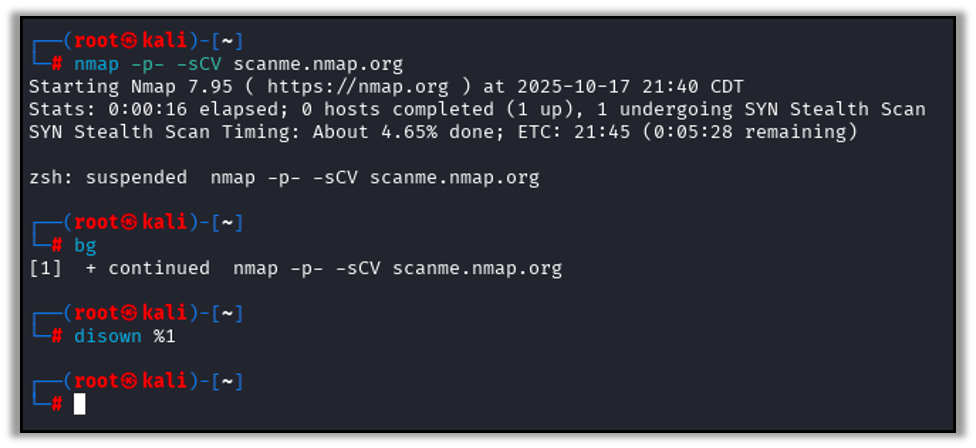
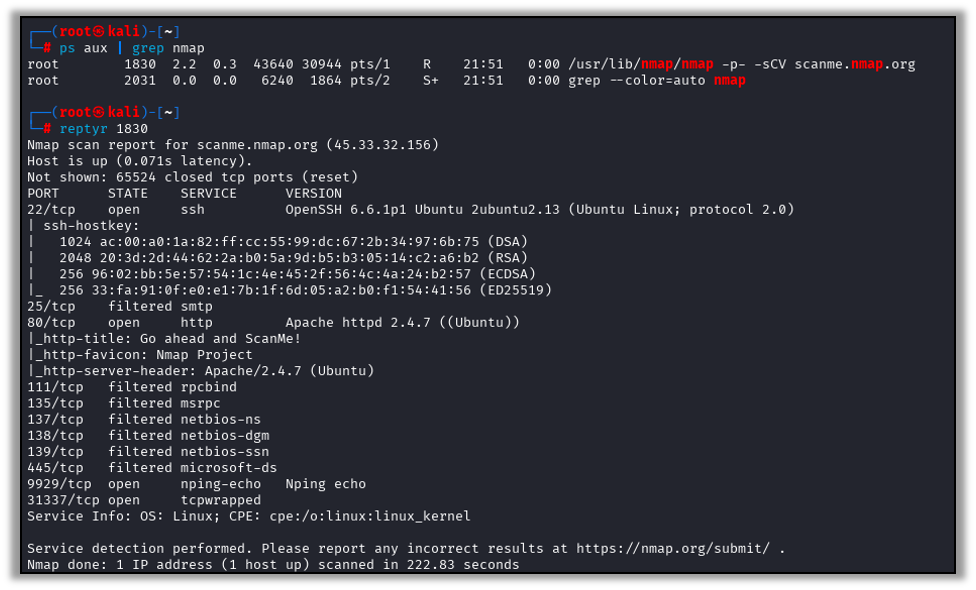
With the process running in the background and not attached to the current terminal session you can launch screen or tmux and use ps to identify the Process ID (PID) of your running process. Once the PID is found, run reptyr <pid> to resume the process in the current terminal.
You can then safely detach your screen or tmux session and rest assured that your long running scan will continue in the background.
A Handy Cheat Sheet
To recap, the process is as simple is:
- Install reptyr:
apt update && apt install reptyr - Suspend your currently running process:
Ctrl+Z - Background the process:
bg - Disown the process:
disown %1 - Start a screen session:
screen - Find the PID:
ps aux | grep nmap - Take over the process:
reptyr <pid>
Thanks for Reading
If you enjoyed this quick tutorial of a tool that I often find very useful on penetration tests, you may enjoy others in this series as well, including Croc for Secure Data Exfiltration.

Jason Taylor
Search The Exploit Blog
Blog Categories
- AI
- Careers
- Choosing a Penetration Testing Company
- Exploits
- How To
- In The News
- Injection Attacks
- Just For Fun
- Meet Our Team
- Mobile Apps
- Networks
- Password Cracking
- Patching
- Penetration Testing
- Phishing
- PTaaS
- Raxis In The Community
- Red Team
- Security Recommendations
- Social Engineering
- Tips For Everyone
- Web Apps
- What People Are Saying
- Wireless
